Manually record chip cards (Convadis)
Register debit card or employee badge
Written By Zemtu
Last updated 3 months ago
This article describes how to scan an unknown chip card or RFID chip (e.g., employee card, employee badge, ATM card, debit card, etc.) with the Convadis C-Box and register it in the Zemtu system. You can then use the registered chip card to lock and unlock vehicles.
There are two options available:
Using an RFID reader app
Using the Convadis Chipcard Reader
RFID App Procedure
RFID tags can be read using various apps.
e.g.:
NFC Reader for Android. Convadis recommends this app, since it displays the ChipID in the right order.
RFID Card Reader - ISO 15693 for Android
NFC Tools for iOS
💡 Some apps may display the code in the wrong order. Therefore, we recommend reading only one card first and then testing it. If the reading fails, we recommend using the procedure using the Convadis Reader. See below.
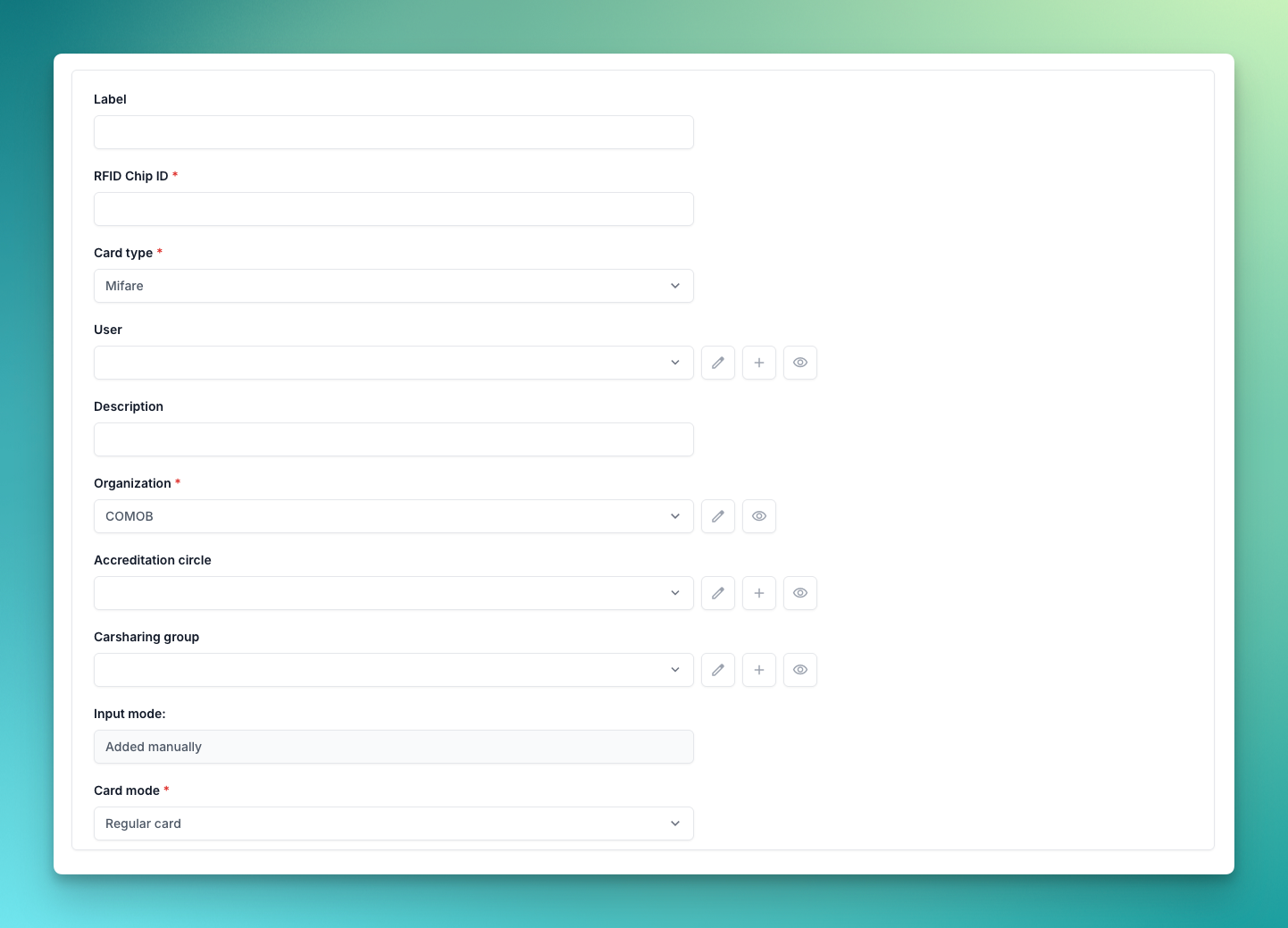
The read chip card can then be created in the system.
Chipcard
/admin/main/chipcard/
Procedure via Convadis Reader
Go to a vehicle with a Convadis Box. Hold the desired chip card up to the reader. The reader will display a red LED indicating that this card is not authorized.
This process is saved in the Convadis interface under "Events." Open the corresponding "Event"; you will find the rejected RFID chip card ID in the action information.
The read chip card can now be created in the Zemtu system:
Chipcard
/admin/main/chipcard/
💡 For further information, please contact Convadis directly.
Questions and answers
Which chip cards can I use?
Which chip cards can I use?
Convadis accepts Mifare, Legic, and Hitag chip cards. However, chip card standards vary widely, so we recommend testing a chip card to ensure that it actually works.
Still need help? Share an idea