Administration
Assign an OBU to a vehicle
Working with custom tags
Accreditation and membership
Change organization admins
Assign a chip card to a user
Deactivate a user temporarily
Delete a user (pseudonymize)
Gleap.io
Identity Check
Invite a user to a group (invitation link)
Manually create a user
Roles
Sign-up process
Gleap.io Banner
Support and daily business
Zemtu Cloud
Zones
Manually record chip cards (INVERS)
Manually record chip cards (Convadis)
Welcome screens
Working with vehicle tags
Make a group selectable in the signup
Vehicle Image Format
Carsharing Groups and Memberships
Damage reporting
Guest mode
Create a QR code that opens the App Store on iOS and the Play Store on Android.
Registration, reservation and usage
Billing
INVERS
Convadis
I LOCK IT
API
Website
Contact us
Changelog
    Home
  1. Administration
  2. Assign a chip card to a user

Assign a chip card to a user

How can chip cards be assigned to a user?

Written By Zemtu

Last updated 3 months ago

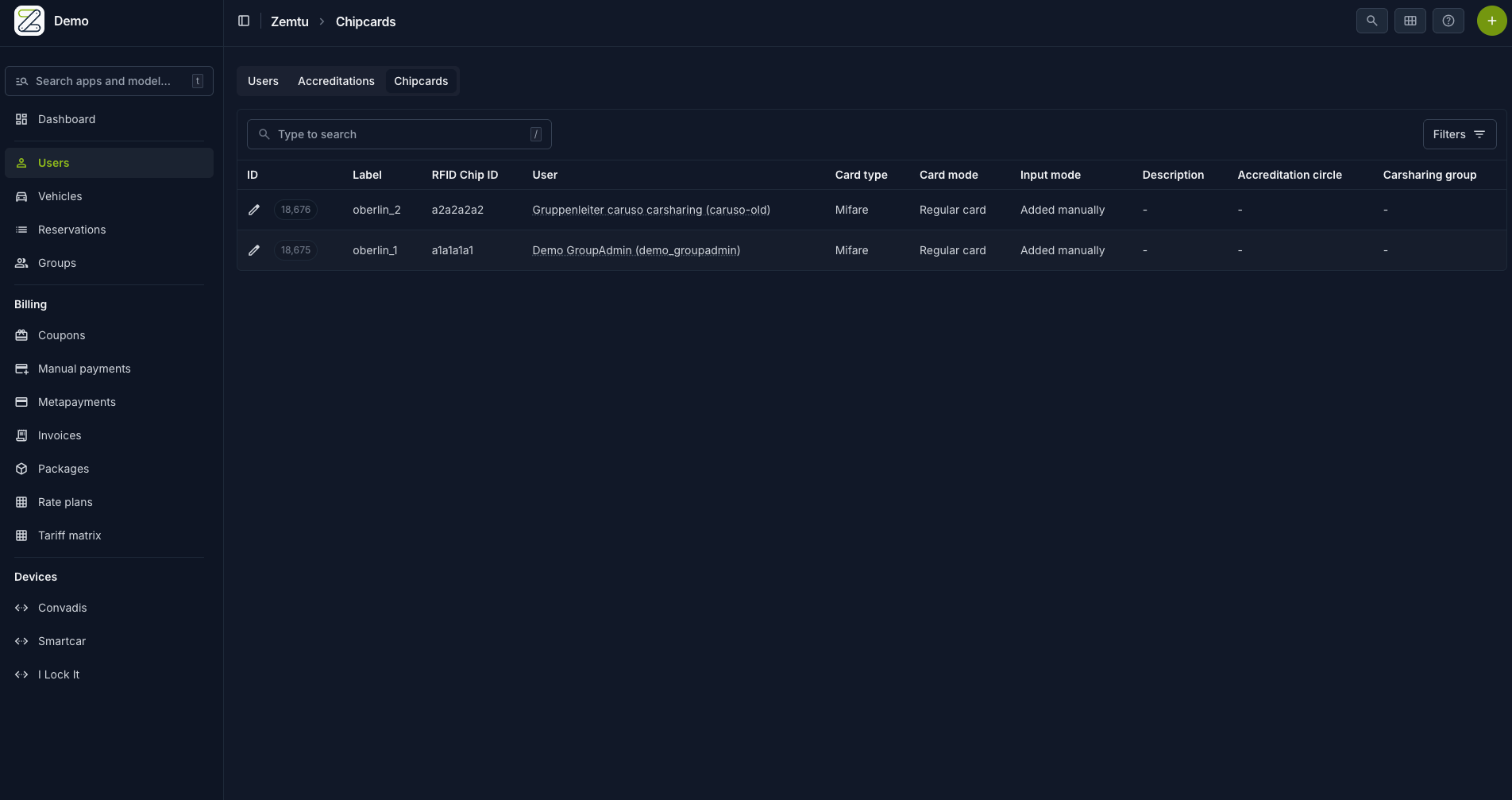
In addition to the app, chip cards can be used to access a vehicle. Once the chip cards have been imported into the system, they can be assigned to a user.

Assign card to a user

Open the menu item Chip cards and select the desired card. Select the desired user.
Questions and answers

On this page

    Assign card to a userQuestions and answers

Was this helpful?