Working with vehicle tags
Custom filter functionality
Written By Zemtu
Last updated 4 months ago
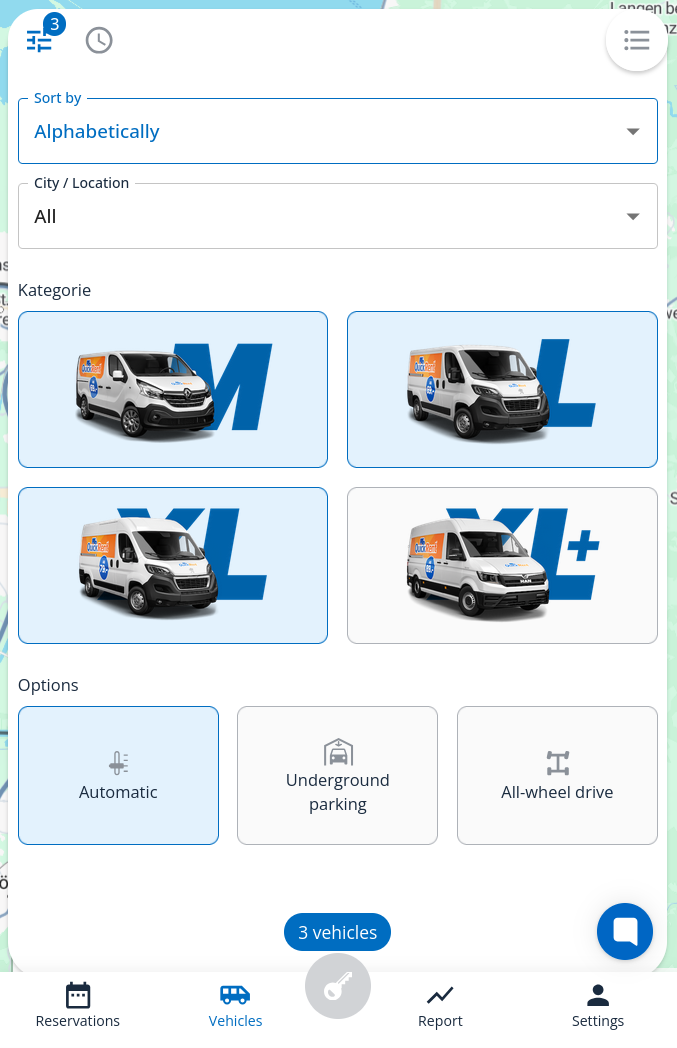
Filtering for vehicles that match certain criteria makes it easy for users to quickly find the vehicle they need. Simply create and assign vehicle tags to vehicles.
Step-by-step guide
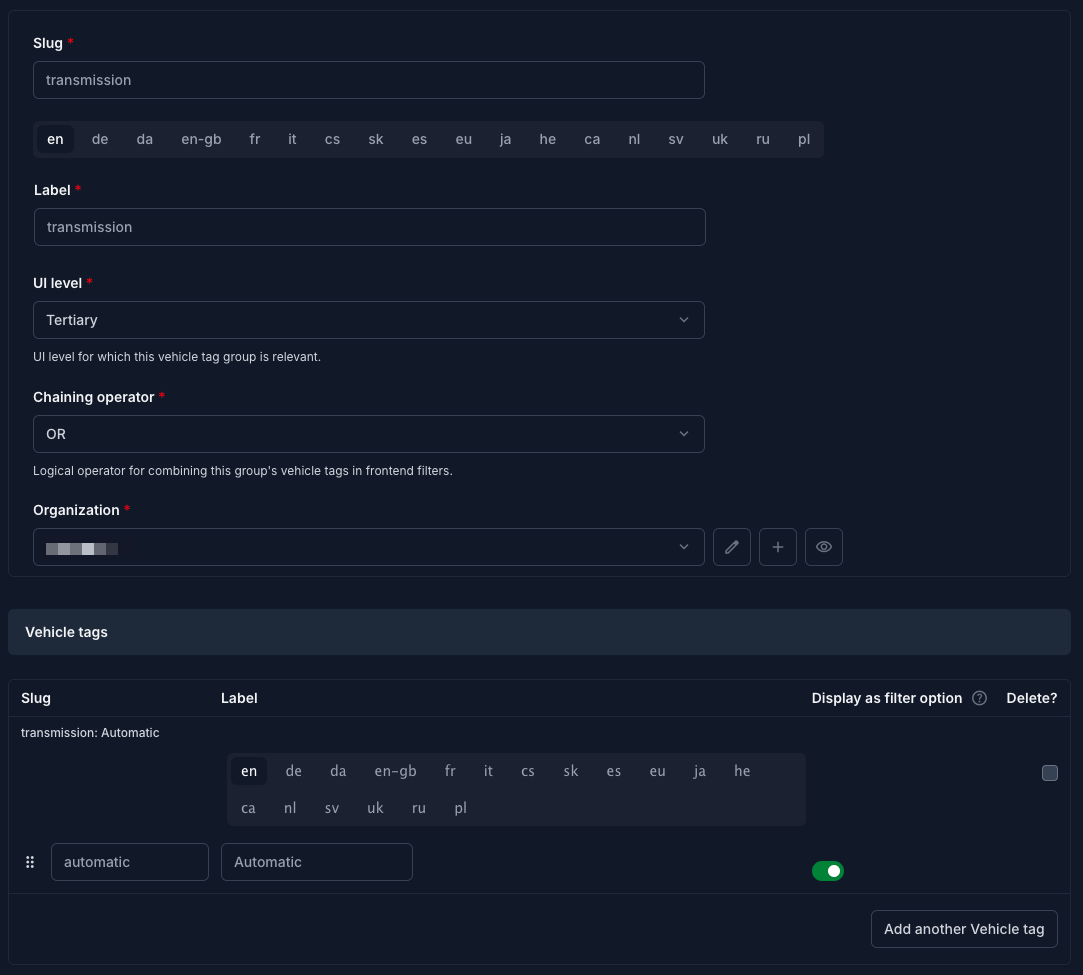
Create “vehicle tag groups” here:
/admin/main/vehicletaggroup/
Per “vehicle tag group”, multiple “vehicle tags” can be defined. The “vehicle tag group” serves as a bucket for the associated “vehicle tags.Assign “vehicle tags” here:
/admin/main/vehicle/
Per vehicle, assign the “vehicle tags” that match the vehicle.Display the filters here:
/admin/main/vehicletaggroup/
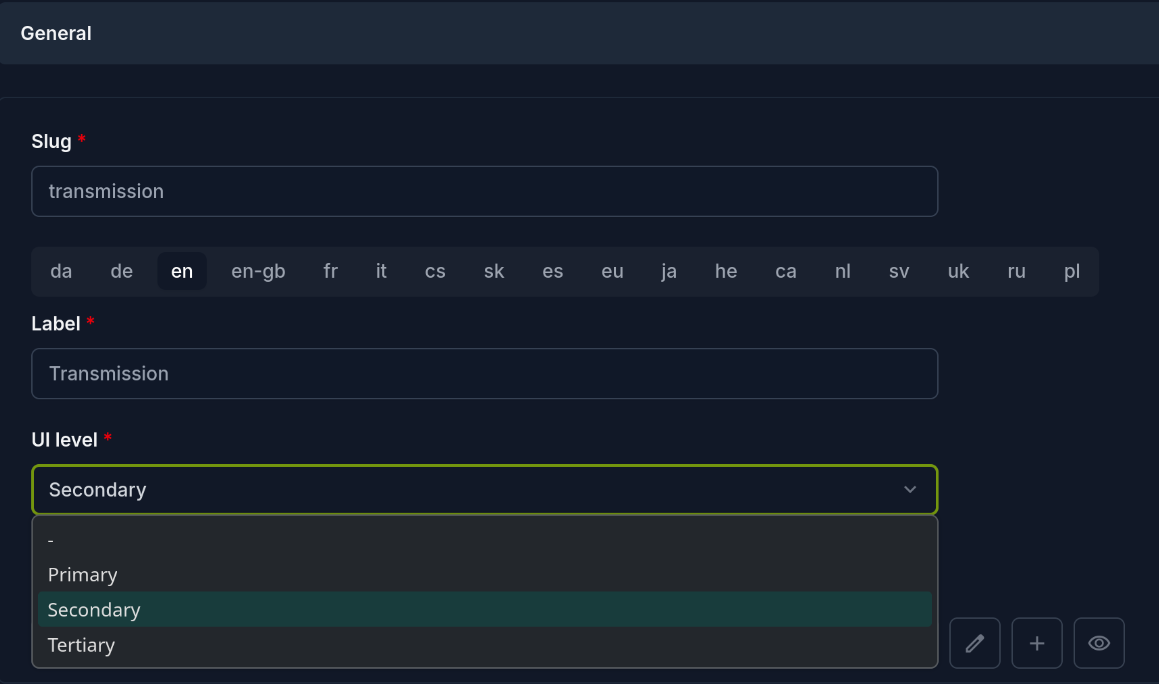
Set the UI level to primary, secondary, or tertiary for a given vehicle tag group—this will make the filter appear in the mobile app.
The UI level defines how prominently the filter will be displayed.Use the chaining operator and choose whether the tags in this group can be selected as an “AND” or “OR” group.
Features
Fully customizable: vehicle tag groups and vehicle tags are all defined by the sharing operator.
Multilingual: all vehicle tag groups and vehicle tags can be translated by the sharing operator.
Per vehicle tag group, you can set the chaining operator (OR / AND). This defines how multiple selections of this group’s vehicle tags are combined.
Per vehicle tag, define whether it shall appear as filter option in the front-end.